
Additional fields for employee admission
Add custom fields to the employee admission form, order them, and edit, deactivate or delete them.
The employee admission form uses default fields, and you can add custom fields to record any additional details.
Add a field
- Click Menu → Administration → Human Resource → Settings → Add Additional Detail.
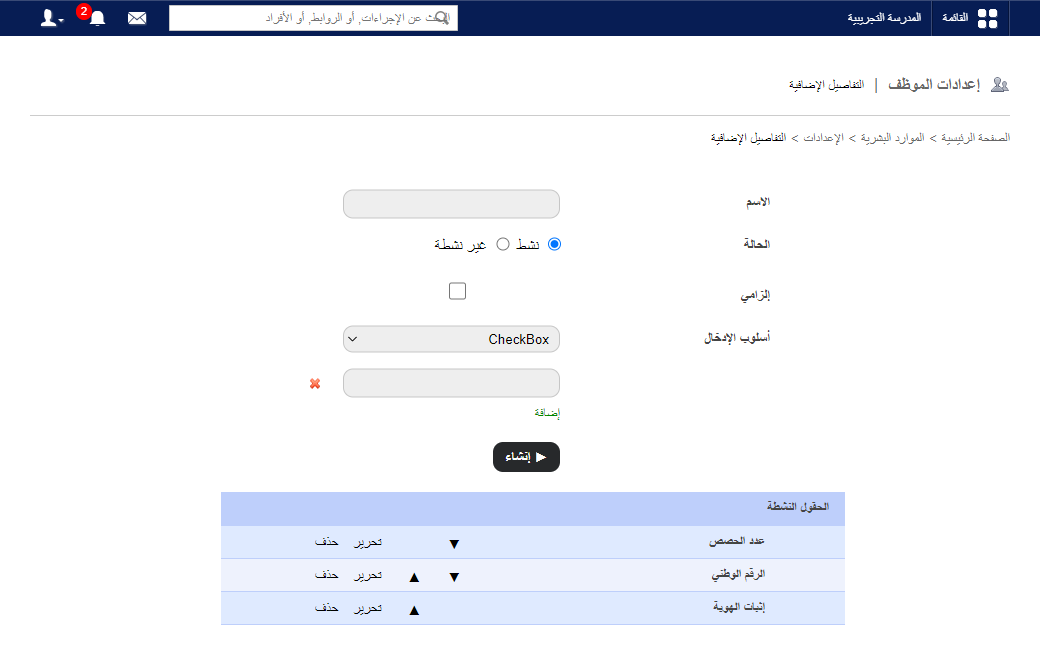
- Enter the field name as it will appear on the form.
- Choose the status: Active (shown on the form) or Inactive.
- Tick Is mandatory if it must be filled.
- Choose the input method:
- Text box: short text.
- Text area: detailed text.
- Select box: one option from a dropdown.
- Check box: one or more options.
- Click Create.
- Use the arrows to set the field order.
Edit, deactivate or delete a field
- Click Edit, choose Inactive to deactivate, and click Update.
- Click Delete to remove a field.
Note: A field already used to record employee details can’t be deleted — deactivate it instead.
Was this article helpful?
Thanks for your feedback!